
Your Citroën GPS still shows a roundabout that has not existed for two years, or guides you to a road that has been closed for months. This discrepancy between the digital map and reality is simply due to outdated mapping files. Updating the built-in GPS of your Citroën car corrects these anomalies, but the procedure requires following a few precise steps to avoid issues.
Citroën Firmware and Mapping: Two Distinct Files Not to Be Confused
Before plugging anything in, a crucial distinction must be made. The Citroën navigation system relies on two separate software layers: the firmware (the program that runs the touchscreen) and the mapping (the road data displayed).
The firmware manages the interface, menu responsiveness, and Bluetooth compatibility. The mapping contains the roads, speed limits, and points of interest. Updating one without the other can create incompatibilities. An old firmware may not read a recent mapping, and vice versa.
On NAC systems (found in many recent Citroëns, from the C3 Aircross to the C4), user feedback reports freezing at about 25% of the download when the firmware is not updated before installing the new maps. The solution: always check the firmware version in the infotainment system settings before starting the mapping update.
If you’re looking for a guide for updating the Citroën GPS suitable for your model, the detailed procedure is explained step by step, system by system.
USB Key for Citroën GPS Update: The Formatting That Trips Everyone Up
The majority of update failures do not come from the downloaded files. They come from the USB key itself. Have you ever noticed that the system sometimes refuses a key that works perfectly on your computer?
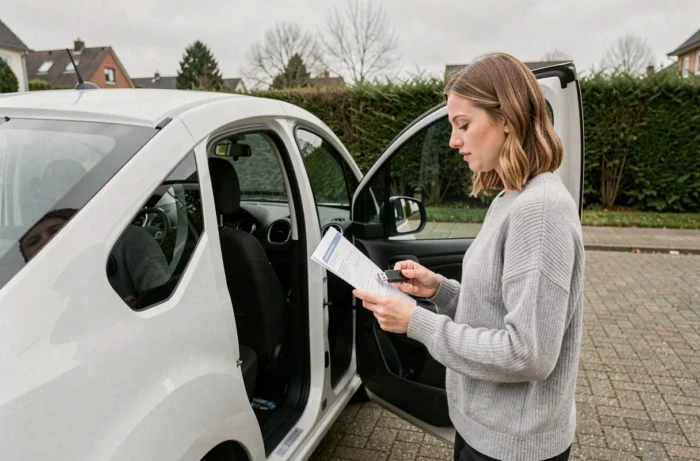
The problem is almost always the same: the file format of the key is not compatible. Citroën’s embedded systems (NAC, RNEG/MyWay, WipNav) require strict formatting. Here are the points to check before any attempt:
- The key must be formatted in FAT32, not NTFS or exFAT. On Windows, the default formatting for keys larger than 32 GB switches to NTFS, making the key invisible to the GPS.
- Use a key of moderate capacity. Very large capacity keys sometimes cause recognition issues on older systems like RNEG.
- Files must be placed at the root of the key, without any manually added subfolder. The system looks for a specific structure and ignores any files stored elsewhere.
- The key should only contain update files. Any other documents (photos, music) can disrupt reading.
A detail often overlooked: some users copy files from a Mac, which generates hidden files (like .DS_Store) that disrupt the Citroën system. Deleting these ghost files before ejecting the key resolves the issue.
Installation Procedure on the Citroën Infotainment System
Once the key is ready, the installation itself follows a precise order. Skipping a step or turning off the ignition at the wrong moment can corrupt existing data.
Download the Correct Files via Citroën Update
Go to the official Citroën update website. The system will ask for your vehicle’s VIN number (visible on the registration card or at the bottom of the windshield). This number determines exactly which navigation system is equipped in your car and which mapping versions are available.
Older systems like MyWay/WipNav (RNEG) continue to receive recent mapping editions. Versions referenced up to 2026 are offered for these systems, reassuring owners of used Citroëns who thought their GPS had been abandoned by the manufacturer.
Start the Update Without Turning Off the Ignition
Insert the USB key into the designated port (usually in the glove compartment or center console). Start the engine or turn the ignition to accessory position. Access the navigation settings, then go to the update section.
Never turn off the ignition during installation. The transfer can take anywhere from several minutes to over an hour depending on the volume of data. An interruption can leave the system in an unstable state, with a frozen screen upon restart.
If the screen freezes during the procedure, the first thing to do is wait. Some NAC systems may appear frozen while they are working in the background. Forcing a restart too early worsens the situation.
Common Errors and Concrete Solutions After Citroën GPS Update
Even when following the procedure to the letter, some situations deserve to be anticipated.
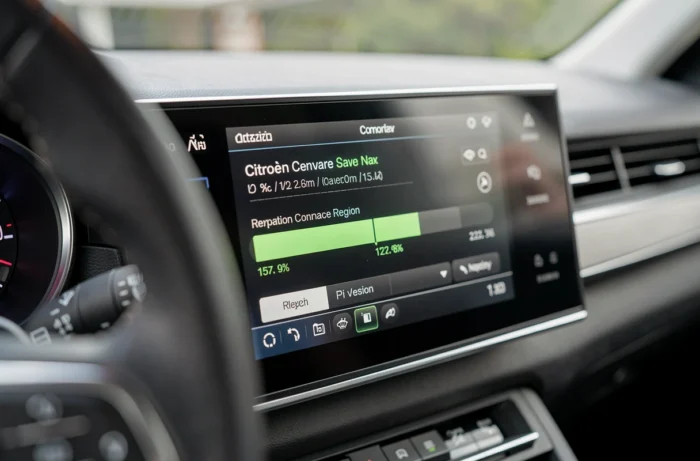
The GPS displays “map not available” after the update. This usually means that only part of the files was copied, or that the key was removed before the process was complete. The solution is to reformat the key, re-download the files, and restart the full installation.
The touchscreen is unresponsive after the firmware update. On NAC systems, a long press on the volume button (or the power button of the screen) for about ten seconds forces a software restart without erasing data.
Speed limits remain incorrect despite the new mapping. Check that the camera sign recognition is not prioritized over GPS data. On some models, the system combines both sources, and the camera may display incorrect information if it misreads a sign.
PSA/Citroën systems based on NAC have seen their firmware evolve regularly (versions released in 2023 are still relevant on many vehicles). Checking that your firmware is the latest available before touching the mapping remains the most protective reflex.
Updating the built-in Citroën GPS is not complicated once the USB key formatting and the order of operations are mastered. The critical point remains patience during installation: allowing the system to work without interruption avoids almost all the problems reported by users.